Docs · Rigo Studio
How Rigo Studio works
Rigo Studio is a farm intelligence system for Africa. It turns what you can see and measure on your farm, your location's climate and 30 years of rainfall into ranked decisions you can act on, then remembers what you did and what happened. Drones and satellites are instruments inside it, not the point of it.
Getting set up
Install Rigo Studio
Use it in your browser with nothing to install, or download the free desktop app for Mac or Windows. Choose yours and tick off each step as you go.
Works everywhere, nothing to install.
0/3 done
- Go to agririgo.com/studio in Chrome, Safari, Edge or Firefox, on a computer, tablet or phone.
Getting started
Your first five minutes
From an empty screen to your first findings. Click a step to see what to do.
Step 1 of 6
Set where your farm is
Click the location chip at the top left: search a place, use your GPS, or pin it on the satellite map.
System design
The decision loop
Every part of Studio serves one loop. It starts with what is observed and ends with what was learned, so the next decision is better than the last. Rules decide what is urgent; models explain and plan around it.
- 1Live
Observe
Your photos (drone or phone), sensor and meter readings, farm records, the forecast and 30 years of rainfall for your exact location.
- 2Live
Connect
Say how the farm is wired: this pump waters Block 3, that panel powers the pump, this probe measures the soil. Now a reading is news about a place, and a dry field is matched to what can water it.
- 3Live
Detect
Each photo is identified (field, plant, produce, screen) before analysis; the vegetation index, labels and Rigo AI find problems; Drought Watch compares this season's rain with normal.
- 4Live
Prioritise
Ranked recommendations computed by stated rules that walk the connections (probe → field → pump → power → forecast), never invented by a model: what to do first, with the chain of evidence.
- 5Live
Simulate
Try it first: do nothing, irrigate tomorrow or in three days, over the 10-day forecast. Days short of water, cubic metres, pump hours and fuel, from a soil water balance (FAO-56).
- 6Live
Act
Plan it in one tap, or let Rigo AI turn the priority into a plan in your role's language; Muse and other assistants can act through the connector.
- 7Partly live
Verify
Record what you did and what changed (interventions and outcomes); photograph the field again; targeted drone flights where they add information.
- 8Roadmap
Learn
Decisions and outcomes build a history per field. Next: comparing interventions across farms and seasons to calibrate the rules.
Navigation
Where everything is
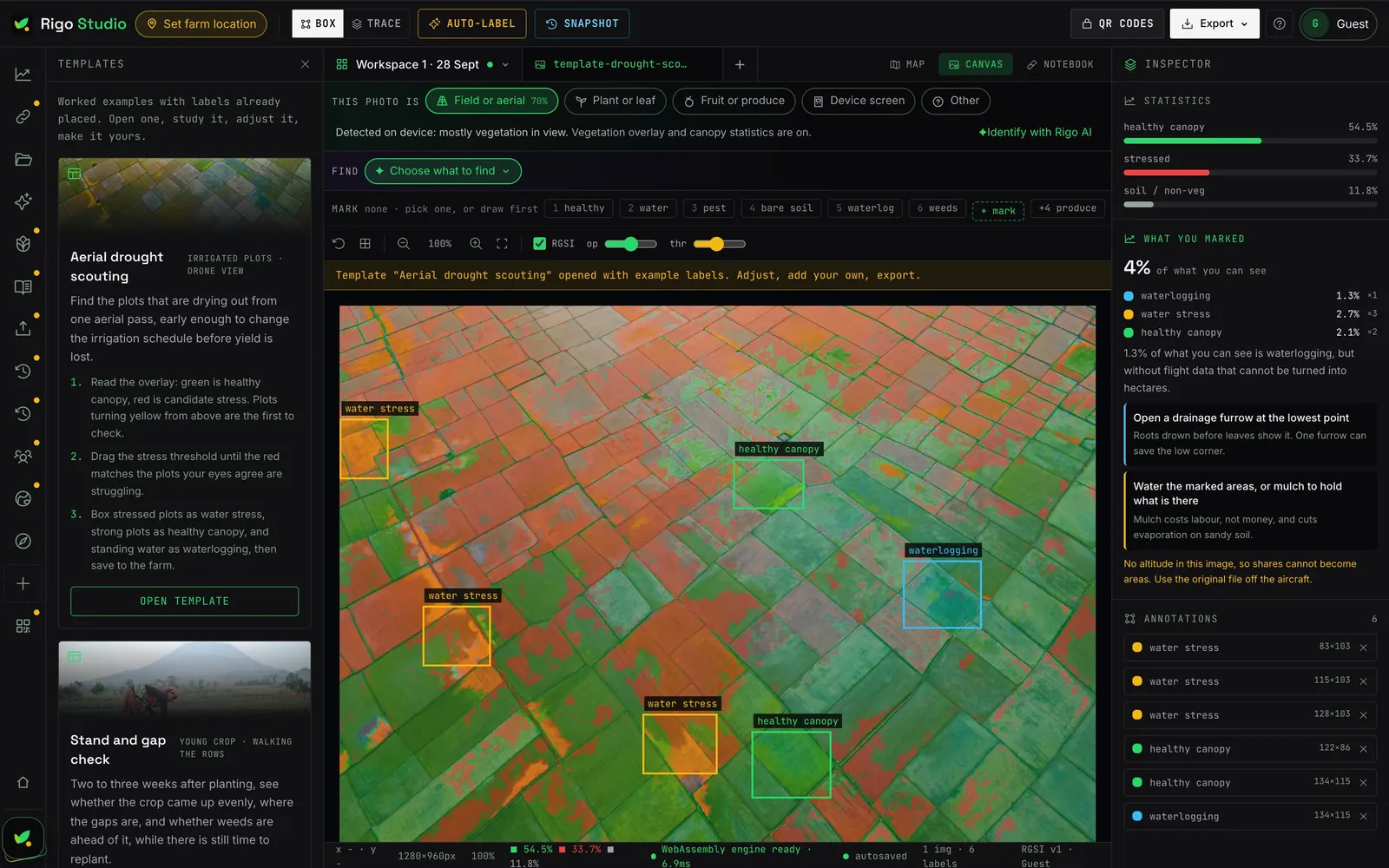
The Studio window, region by region. The numbers match the list below.
- 1Farm location chipTop left. Shows your farm's place and flag; click to open Farm & fields: search, use your phone's location, or pin the farm and each field on the satellite map.
- 2Photo toolsBox (detection) or Trace (exact areas), Auto-label to have Rigo propose labels you then correct, Snapshot to save a season's work.
- 3QR codes, Export, Help, AccountTop right. Crop passports; the Export menu (COCO dataset, one image's JSON, DJI bundle); Help (tour, this guide, Rigo AI); your account (profile, connections, data, sign out).
- 4Module railLeft edge. Your tools: Today, Connections, Fields, Rigo AI analysis, Evidence & decisions, Farm operations, Records, Connect data, Saved work and more. The + button customises it.
- 5Side panelOpens the module you chose on the rail, beside the canvas.
- 6This photo isAbove the canvas. What the open photo is, worked out on your device: field, plant, produce, device screen or other. It decides the analysis; correct it in one click.
- 7CanvasThe photo with the vegetation overlay (green healthy, red stressed) and your labels. Drop photos anywhere on the window to add them.
- 8InspectorRight. Statistics for the open photo, what you have marked, and the annotation list.
- 9Rigo orbBottom left by default. Drag it anywhere; tap it (or Cmd/Ctrl + J) and Rigo AI pops out: Chat, Twin, Decisions and Guide.
Getting started
Your first hour
- 01Create a free account and choose your countryAny of the 54 African countries. Seasons, currency and advice follow it.
- 02Set where your farm isClick the location chip. Search a town or district, press "I'm at the farm" to use your phone's GPS, or pin it on the satellite map. The country is worked out from the point.
- 03Add and pin your fieldsIn the same sheet: add each block, give its size, and locate it by standing in it (GPS) or clicking it on the map.
- 04Connect what serves each fieldOpen Connections and tap a pump, probe or machine, then tap how it connects (waters, powers, measures, works on) and which field. Names that already say it ("Block 3 pump") are suggested for one tap. This is what lets Today say "irrigate Block 3 with Pump 2" instead of "Block 3 is dry".
- 05Read Drought WatchShown under your farm: this season's rain against the 1991-2020 normal at your location, and the week ahead. Rigo AI raises it in your briefing when it flags something.
- 06Allow Rigo AI, onceOpen the Rigo orb and choose Allow so it can read your farm. Say no and it still answers general questions without your data.
- 07Tell Rigo how your work runsSix role-specific questions (crops, water, equipment, records, challenges). It remembers them, and facts you choose to keep from chat.
- 08Choose what to find, then add photosPick a use case (farm assets, livestock, weeds, pests, produce, water, stand count, crop health, meter reading, or your own words), then drop drone or phone photos. Studio runs the right method straight away.
- 09Check what was foundTap each box to confirm or reject it, add details (a tank's capacity, a herd's breed) and attach files, then save to your farm. Your checks are what trains a detector on your fields.
- 10Ask, decide, saveAsk Rigo AI about a problem; its answer ends in decision cards. Save the ones you will do: they land in Decisions and your archive, and Rigo follows them up.
- 11Record what happenedLog readings, costs and the outcome of actions in Farm operations and Records, so the next answer is better.
- 12Share and connectExport datasets, build crop passports with QR codes, or connect Meta Muse from Profile → Connections.
Ready? Open Rigo Studio. It is free.
Primary workflow
Find objects
The fastest way to fill your farm's ontology is to photograph it. Tell Rigo Studio what you are looking for, and it finds, labels and counts those things, then files them under the photo, the field and your assets.
- 01Choose a use caseFarm assets, livestock, weeds, pests and leaf disease, produce grading, water, stand count, crop health, meter reading, or type your own objects. The use case decides the method and the objects.
- 02Studio finds themAn open-source detector (OWLv2) runs on your own device and draws a labelled, scored box on each object. Rigo AI can also describe the photo and suggest things it saw that you did not ask for.
- 03You check themConfirm or reject each box. The slider shows fewer or more; dashed boxes are the less certain ones. Scores rank boxes, they are not probabilities.
- 04Save to your farmAdd details and files per object, pick the field, and save: observations and boxes join the photo and field; panels, tanks, tunnels and herds become assets.
Relations are measured. "On" means one box sits inside another; "next to" means they touch. No model invents a relation.
Photos stay on your device. The detector downloads once (about 155 MB, cached) and runs locally. Only the optional Rigo AI description sends a small copy.
What it is good at. Clear objects: animals, vehicles, tanks, fruit, leaves close up. Dense or oblique aerial scenes need your checks, and those checks are what a farm-specific detector is trained on.
Architecture
Four layers
From what you touch down to where the data comes from. Photos are analysed on your device; your records are read only as you, by database row security; models see your farm only after you allow Rigo AI.
1 · Experience
Rigo Studio
Web and desktop (Mac, Windows): canvas, modules, Farm & fields map
Rigo AI
The assistant: chat, twin, decisions, guide; role-aware
Connector
OpenAPI + OAuth for Meta Muse and other assistants
RigoTrace
Crop passports and QR codes for buyers
2 · Intelligence
Rules first
Recommendations, Drought Watch, weather advice: computed, thresholds stated
On-device vision
Photo kind (MobileNet), vegetation index (WebAssembly); photos stay local
Language models
Explain, plan, diagnose; open models via Hugging Face, Nebius, NVIDIA with fallback
Research
Web research (Tavily) with numbered sources, only when asked or needed
3 · Farm ontology
Farms and fields
Location (pin, GPS or search), country, size
Crop cycles
Crop, variety, season, planting and harvest
Observations → interventions → outcomes
What was seen, what was done, what changed
Assets, readings, records, decisions
Pumps, sensors, stock, costs, commitments
Connections (the farm graph)
Waters, powers, supplies, measures, works on: what lets one reading reach every decision it matters to
4 · Sources
Your data
Photos, labels, readings, CSVs, answers you give Rigo
Climate
ERA5 reanalysis 1991-today and 7-day forecast (Open-Meteo)
Imagery
Sentinel-2 cloudless basemap (EOX), your drone and phone photos
Places
OpenStreetMap (Nominatim) and GeoNames for location
Data model
The farm ontology
The core object is not an image: it is the farm and each field, with a history. Photos, readings and decisions attach to it, which is what lets Rigo say “Block 3 was dry in 2024 and again now”.
Person (role, country)
└── Farm  (location: pin | GPS | search, country, size)
    ├── Field  (location, area)
    │   ├── Crop cycle  (crop, variety, season, planted, harvest)
    │   ├── Imagery     (drone, phone, satellite; metadata)
    │   ├── Observation (what was seen, severity, evidence, verified?)
    │   ├── Intervention (what was done, decided by, when)
    │   └── Outcome     (before → after, verdict)
    ├── Asset   (pump, tank, tunnel, herd, sensor, drone…)
    │   ├── Reading (metric, value, unit, time)
    │   └── Connection → field or asset (waters, powers, measures…)
    ├── Record  (purchases, sales, wages, stock)
    ├── Decision (saved from Rigo AI, open → done)
    └── Drought Watch (computed per location, not stored)
Making the data talk
Connections
A soil probe that reads 14% is a number. The same reading, from a probe that measures Block 3, on maize that is flowering, with no rain forecast, beside a pump that waters Block 3 and a solar array that powers the pump, is a decision. Connections are the sentences that turn the first into the second. You say them once, in plain words, and every rule, every screen and Rigo AI reason across them from then on.
Waters
Pump, irrigation, borehole or tank → field
Powers
Solar array or generator → pump, borehole, cold store
Measures
Soil probe or weather station → field (with the level at which it needs water)
Works on
Tractor, implement or team → field
Grazes, supplies, stores, flies over
Herds, fuel and feed, stores and drones → what they serve
OBSERVE     Soil probe S-3 reads 14% on Block 3, falling 3 points a day
CONTEXT     No rain in the 5-day forecast · maize flowering (day 69)
            Pump P-02 waters Block 3 · Solar 1 powers it, at 93% of expected
REASON      At the mark, rain will not refill it, the means to water it is ready
RECOMMEND   Irrigate Block 3 with Pump P-02
SIMULATE    Do nothing: 10 days short of water · water tomorrow, 80 mm: 1 day
DECIDE      Plan it → it shows on Block 3 and on Pump P-02 as planned
FEEDBACK    Mark it done, record the outcome; the next reading closes the loop
Nothing is connected for you. Names that already say it (“Block 3 pump”) are suggested, but a wrong link would route every recommendation through the wrong pump, so a person always says yes.
Told, not asked. When a reading, a photo finding or an action lands, from you, a colleague or an import, Today updates while it is open and lists what changed since you last looked.
Open standards out. Connections downloads the graph as NGSI-LD (FIWARE Smart Data Models: AgriFarm, AgriParcel, AgriCrop, Device) or OGC SensorThings, and the connector serves it at /graph. Boundaries and photos are never included.
Protect
Drought Watch
Zambia's 2023/24 drought showed that the data existed but agreed triggers to act on it did not. Drought Watch is a transparent trigger, the same rule everywhere, with the numbers behind every status shown:
| Status | Rule | What to do |
|---|---|---|
| Normal | 30-day rain at or above the 33rd percentile of 1991-2020 | Keep recording |
| Watch | Below the 33rd percentile, or a dry week ahead in the rainy season | Check soil moisture at root depth; hold top-dressing |
| Dry spell | Below the 20th percentile and 90-day rain under 75% of normal | Walk fields within 48 h; irrigate flowering crops first; mulch |
| Severe | Below the 10th percentile, 90-day under 60%, and a dry week ahead | Inspect every field; decide save vs lost; record damage as evidence |
| Dry season | Outside the country's rainy season, where little rain is normal | Watch irrigation demand instead |
Honest limits. It watches rainfall, not your crop: crop stage, soil and irrigation change what a dry spell means, so confirm in the field before acting on anything costly. The thresholds are a starting point that should be calibrated against recorded outcomes in each region, which is what saved decisions and outcomes in Studio are for. Data: ERA5 reanalysis and forecast via Open-Meteo.
After a drought (Recover). Today: document damage with photos, observations and decisions, and plan with Rigo AI. On the roadmap: recovery cases that split a farm into recoverable, replant and restore zones, match them to support, and verify recovery.
Everywhere
Across Africa
All 54 countries
Choose yours at sign-up; the farm's own location takes over once set.
Your location, three ways
Search a place, share your phone's GPS standing on the farm, or pin it on the satellite map. We record which, because a GPS fix and a town centre are not equally precise.
Country from the point
The pin is turned into country, province and district automatically (OpenStreetMap).
Local seasons
Rigo AI knows your main rains (bimodal in East Africa, one season in the south and Sahel), your currency and the crops that are normal there.
Private by default
Your farm's location is visible only to your account. Field centres are stored, not boundaries.
Works on a phone
Pinning a field by standing in it is the most accurate way, and the simplest.
Honest
What is live, what is next
| Area | Live now | Next |
|---|---|---|
| Location | Farm and field points by search, GPS or pin; country from the point; 54 countries | Field boundaries drawn on the map, area measured from them |
| Drought | Drought Watch per location (rain vs 1991-2020, forecast balance), in the briefing and Rigo AI | Crop-stage weighting; thresholds calibrated against recorded outcomes per region |
| Satellite | Sentinel-2 basemap for locating fields | Per-field vegetation time series and anomaly (Sentinel-2) |
| Objects | Use cases, open-vocabulary detection on the device (OWLv2), Rigo AI description, details and files per object, saved to the ontology | Detectors fine-tuned on your confirmed boxes; counts per hectare from flight altitude |
| Drone | Photo analysis, labels, DJI metadata (altitude, GSD, area), opening a stitched orthomosaic, DJI training export | Stitching orthomosaics from a whole flight (OpenDroneMap), DSM/DTM |
| Recovery | Damage evidence through photos, observations and decisions | Recovery cases: damage assessment, recoverable vs replant zones, plan and verification |
| Connections | Farm graph: fields, machines, sensors, water, power, herds and data sources as one connected picture; one-tap suggested links; live updates when a reading lands; export as NGSI-LD (FIWARE) and OGC SensorThings | Direct telemetry from sensor networks and machine portals into the same graph; a connection to a co-operative's context broker |
| Scenarios | Water what-if per field: do nothing, irrigate tomorrow or later, over the 10-day forecast (FAO-56 soil water balance), with water, pump hours and fuel from your own records | Yield-aware crop-water scenarios (FAO AquaCrop): what if it stays dry, what if we replant |
Shortcuts
- Cmd/Ctrl + J Rigo AI
- O vegetation overlay on or off
- 1-9 label class on the canvas
- G grid · F fit · + / - zoom
- Backspace undo the last shape
- Esc cancel a trace, close a panel or menu
- Double-click the Rigo orb to send it home
- Drop photos anywhere on the window to add them